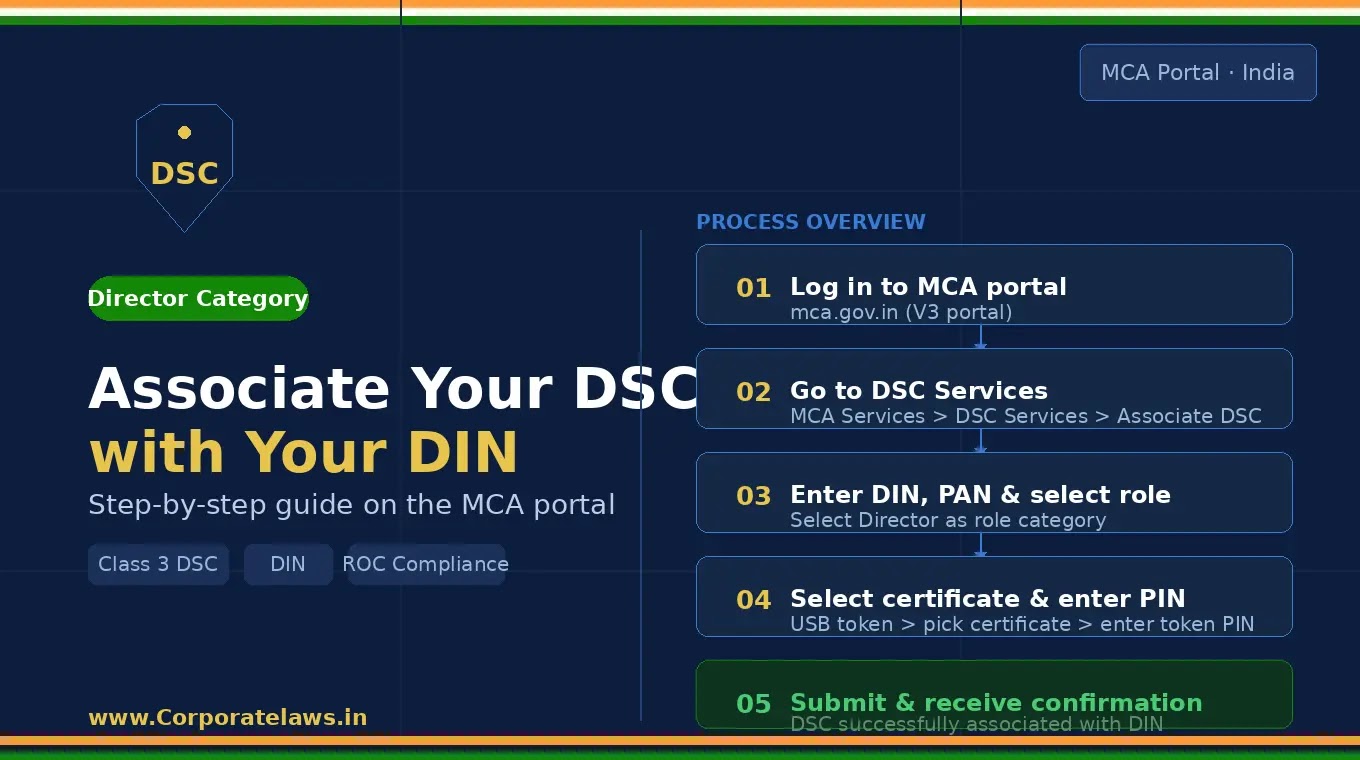
How to Associate Your Digital Signature Certificate
(DSC) with DIN on the MCA Portal — A Complete Step-by-Step Guide
Introduction
If you have been appointed as a Director in an
Indian company, one of the most critical compliance steps is associating your Digital
Signature Certificate (DSC) with your Director Identification Number
(DIN) on the Ministry of Corporate Affairs (MCA) portal. Without
this association, you will not be able to digitally sign and file any e-forms
on the MCA portal — making it a non-negotiable requirement.
Whether you are a newly appointed director or an
existing one who has recently obtained a fresh DSC, this guide walks you
through the entire process — from prerequisites to final confirmation — in a
clear, step-by-step manner.
What Is DSC and Why Must It Be
Linked to Your DIN?
A Digital Signature Certificate (DSC) is an
electronic equivalent of a physical signature, issued by a licensed Certifying
Authority (CA) in India. It authenticates your identity when you sign documents
digitally.
A Director Identification Number (DIN) is a
unique 8-digit identification number allotted by the MCA to every individual
who intends to be or is already a director of a company.
Linking the two ensures that:
- Only
the rightful director can sign and submit compliance filings. - Your
filings are legally valid and tamper-proof. - The
MCA can verify your identity electronically.
Prerequisites — What You Need
Before You Begin
Before you start the process, ensure you have the
following ready:
- A
Valid DIN —
Your 8-digit Director Identification Number, allotted by MCA. - A
Valid Class 3 DSC — Issued in your name by a MCA-approved
Certifying Authority (e.g., eMudhra, Sify, NSDL, etc.). Note: From
January 2021, only Class 3 DSCs are accepted for MCA filings. - DSC
USB Token —
Your DSC must be stored on a physical USB crypto token. - DSC
Driver/Software Installed — The driver for your USB token brand (e.g.,
ePass2003, WatchData, Feitian) must be installed on your computer. - Java
Enabled Browser or Updated MCA Portal Access — The MCA V3 portal now
largely supports modern browsers. - Registered
Login on MCA Portal — You must have a registered user account on www.mca.gov.in. - Your
PAN —
Permanent Account Number linked to your DIN.
Step-by-Step Process to Associate
DSC with DIN on the MCA Portal
Step 1: Plug In Your DSC USB
Token
Insert your Class 3 DSC USB token into your
computer’s USB port. Ensure the driver software for your token is already
installed and the token is recognized by the system.
Tip: You can verify this by checking if the token’s
management utility opens and your certificate is visible inside it.
Step 2: Visit the MCA Portal
Open your browser and navigate to the official MCA
portal: https://www.mca.gov.in
The MCA has migrated to its Version 3 (V3)
portal, so make sure you are on the updated interface.
Step 3: Log In to Your MCA
Account
- Click
on “Login” on the top-right corner of the MCA homepage. - Enter
your Username and Password. - Complete
the CAPTCHA verification. - Click
“Login” to proceed.
Note: If you do not have an account, click “Register”
and create one using your PAN and basic personal details before proceeding.
Step 4: Navigate to the DSC
Association Section
Once logged in:
- On
the MCA V3 dashboard, look for the “MCA Services” menu in
the top navigation bar. - Under
MCA Services, go to “DSC Services”. - Click
on “Associate DSC”.
Alternatively, you can directly search for “Associate
DSC” in the search bar on the MCA portal.
Step 5: Select the Role as
“Director”
On the Associate DSC page, you will be prompted to
select the category/role for which you wish to associate your DSC. From the
dropdown menu:
- Select
“Director” as the role. - This
will prompt the system to verify your DIN.
Step 6: Enter Your DIN and PAN
Details
Fill in the following details accurately:
- DIN — Enter your 8-digit
Director Identification Number. - PAN — Enter your Permanent
Account Number. - Name — Your name will be
auto-populated from the MCA records based on your DIN. Verify that it
matches your DSC exactly.
Important: The name on your DSC must exactly match the
name on your DIN records in the MCA database. Even minor discrepancies (e.g.,
initials vs. full name) can cause the association to fail. If there is a
mismatch, you will need to update your DIN records via Form DIR-6 before
proceeding.
Step 7: Select Your Digital
Signature Certificate
- Click
on the “Select Certificate” or “I have DSC”
button. - A
pop-up window will appear showing the certificates available on your
connected USB token. - Select
the correct certificate — ensure it is in your name and is valid
(not expired). - Click
“OK” or “Select” to confirm.
Tip: If no certificate appears, check whether your USB
token is properly inserted, the driver is installed, and your browser’s
security settings allow Java or the relevant DSC plugin.
Step 8: Enter the USB Token
Password (PIN)
After selecting the certificate, you will be
prompted to enter the password/PIN of your USB token. This is the
security PIN set when your DSC was issued.
- Enter
your token PIN carefully. - Click
“OK”.
Step 9: Submit the Association
Request
Once the certificate is selected and authenticated:
- Review
all the details on the screen — DIN, PAN, Name, and Certificate details. - If
everything is correct, click “Submit” or “Associate
DSC”.
The system will process your request. This usually
takes a few seconds.
Step 10: Confirmation of DSC
Association
Upon successful submission, you will receive a confirmation
message on the screen stating that your DSC has been successfully
associated with your DIN.
Additionally, you may receive a confirmation
email on your registered email address linked to your MCA account.
Save or screenshot the confirmation for your records. This serves as
proof of association.
How to Verify That Your DSC Has
Been Successfully Associated
To verify the association:
- Log
in to the MCA portal. - Go
to “MCA Services” → “DSC Services” → “Verify
DSC Association” (or check your user profile/DIN details). - Enter
your DIN and PAN. - The
portal will display the details of the DSC currently associated with your
DIN, including the certificate’s validity period.
Common Errors and How to Resolve Them
|
Error |
Likely Cause |
Solution |
|
Name |
Name on |
Update |
|
DSC Not |
Token |
Reinstall |
|
Certificate |
DSC |
Renew |
|
Invalid |
Wrong |
Re-enter |
|
DIN |
Previous |
Disassociate |
|
Portal |
Technical |
Try |
Important Points to Remember
- One
DSC per DIN:
Only one DSC can be associated with a DIN at a time. If you obtain a new
DSC (e.g., upon renewal), you must associate the new one, which will
automatically replace the old one. - Class
3 Only: MCA
no longer accepts Class 2 DSCs. Ensure your DSC is Class 3. - DSC
Validity:
Always check the validity period of your DSC before filing. An expired DSC
will result in rejected filings. - Authorised
Signatory for Companies: If you are also an authorised signatory for
company e-filings, a separate DSC association may be needed under that
role. - Keep
Your Token Safe:
Your DSC token is equivalent to your signature — keep it secure and never
share your PIN.
Conclusion
Associating your DSC with your DIN on the MCA
portal is a straightforward process but one that requires attention to detail —
particularly ensuring that your name matches across all records. Once done, you
will be fully equipped to sign and submit MCA filings in your capacity as a
Director.
Did you find this guide helpful? Share it with
fellow directors and professionals navigating MCA compliance. For more
step-by-step guides on company law, ROC filings, and corporate compliance in
India, stay subscribed to this blog.
Disclaimer: This article is intended for general
informational purposes only and does not constitute legal or professional
advice. MCA portal interfaces and processes may be updated from time to time.
Always refer to the official MCA portal and relevant government notifications
for the most current procedures.